
Profiles
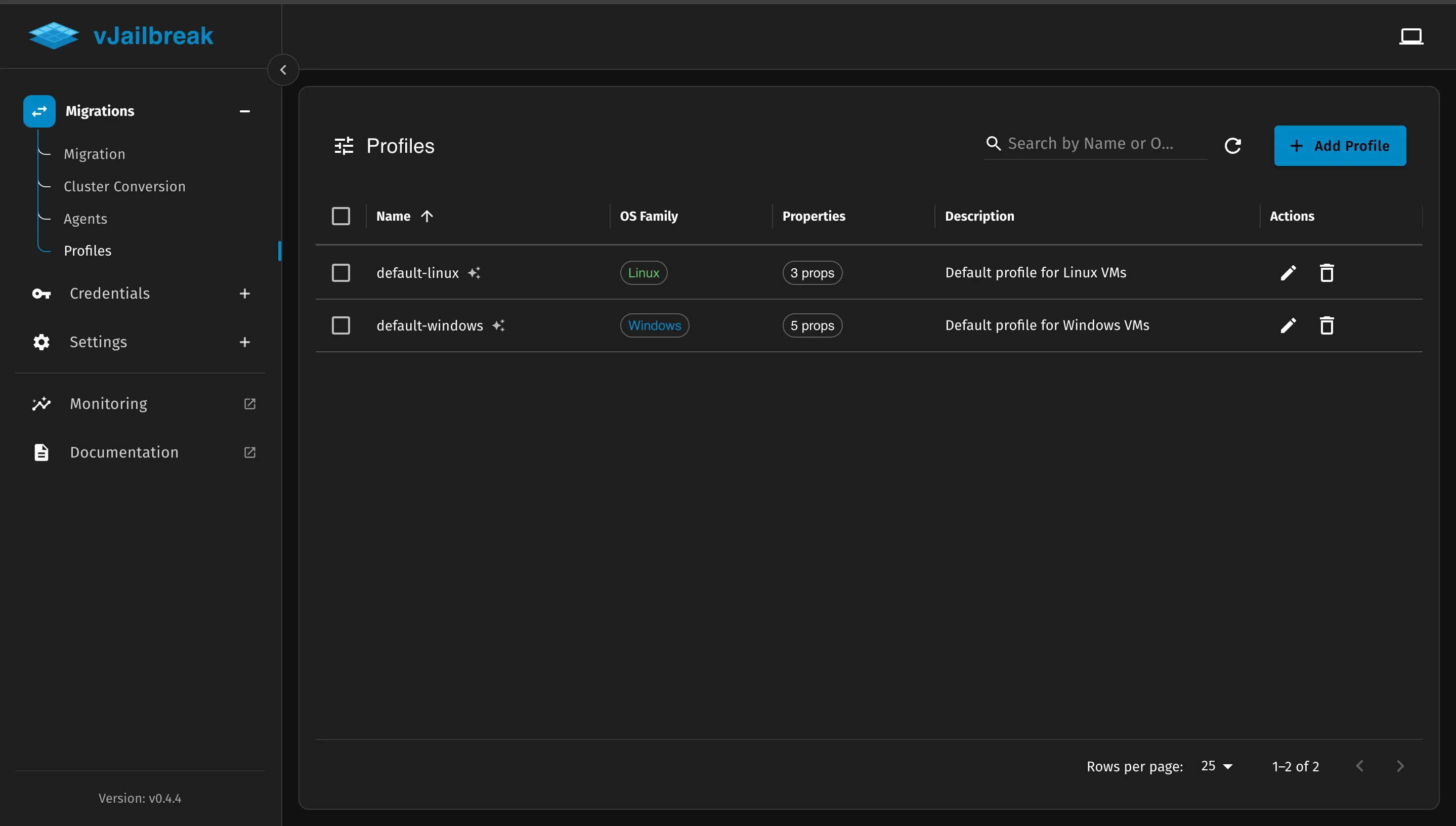
Profiles let us define a named set of OpenStack Cinder volume_image_metadata properties and apply them to VM boot volumes during migration. This gives us control over how the migrated VM boots and runs in OpenStack — for example, setting the firmware type, disk bus driver, video model, or guest agent settings — without having to configure each migration individually.
Navigate to the Profiles section in the sidebar to view and perform all CRUD operations on profiles.
Default Profiles
vJailbreak ships with two built-in profiles that are created by default as a template:
default-linux
Applies to Linux VMs (linuxGuest).
| Property | Value |
|---|---|
hw_qemu_guest_agent | yes |
hw_video_model | virtio |
hw_pointer_model | usbtablet |
default-windows
Applies to Windows VMs (windowsGuest).
| Property | Value |
|---|---|
hw_qemu_guest_agent | yes |
hw_video_model | virtio |
hw_pointer_model | usbtablet |
hw_disk_bus | virtio |
os_type | windows |
Creating a Profile
-
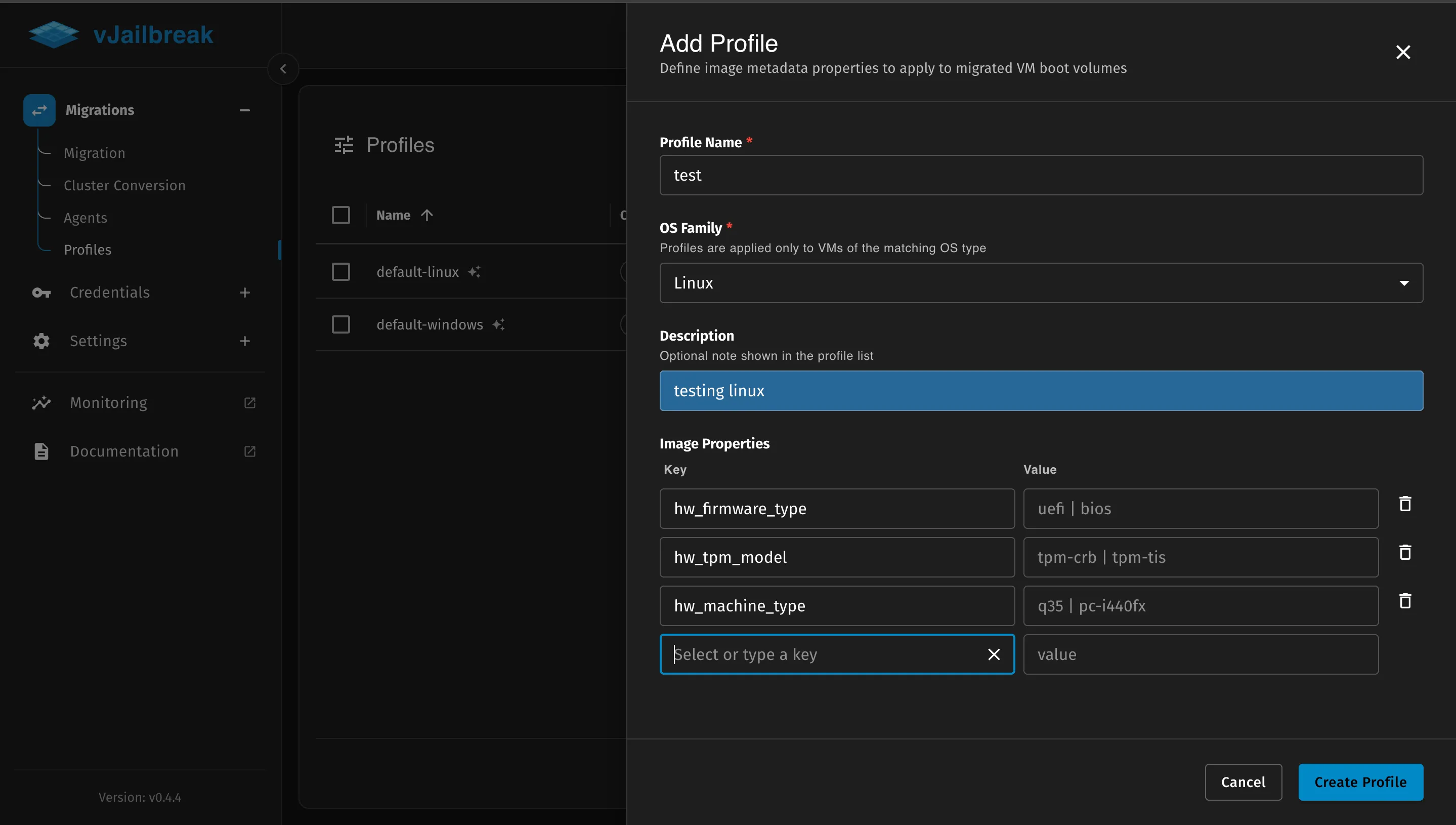
On the Profiles page, click Add Profile.
-
Fill in the following fields:
- Profile Name — A unique name using lowercase letters, numbers, and hyphens (e.g.,
windows-uefi-q35). The name cannot be changed after creation. - OS Family — The type of VM this profile applies to:
Windows— Only applied to Windows VMsLinux— Only applied to Linux VMsAny (applies to all VMs)— Applied to every VM regardless of OS
- Description — Optional. A short note shown in the profile list.
- Image Properties — One or more key-value pairs of OpenStack volume image metadata. Type directly into the key field or select from the list of known property keys.
- Profile Name — A unique name using lowercase letters, numbers, and hyphens (e.g.,
-
Click Create Profile.
Known Image Property Keys
The property key field in the profile form offers autocomplete suggestions for common OpenStack volume image metadata keys. The hints shown alongside each key are example values.
| Key | Example Values |
|---|---|
hw_firmware_type | uefi, bios |
hw_machine_type | q35, pc-i440fx |
hw_disk_bus | virtio, scsi, ide |
hw_scsi_model | virtio-scsi, buslogic |
hw_tpm_model | tpm-crb, tpm-tis |
hw_tpm_version | 1.2, 2.0 |
os_secure_boot | required, disabled, optional |
os_require_quiesce | yes, no |
os_type | windows, linux |
hw_qemu_guest_agent | yes, no |
hw_video_model | virtio, qxl, vga |
hw_cdrom_bus | sata, ide, virtio |
hw_boot_menu | true, false |
hw_pointer_model | usbtablet, ps2mouse |
Selecting Profiles During Migration
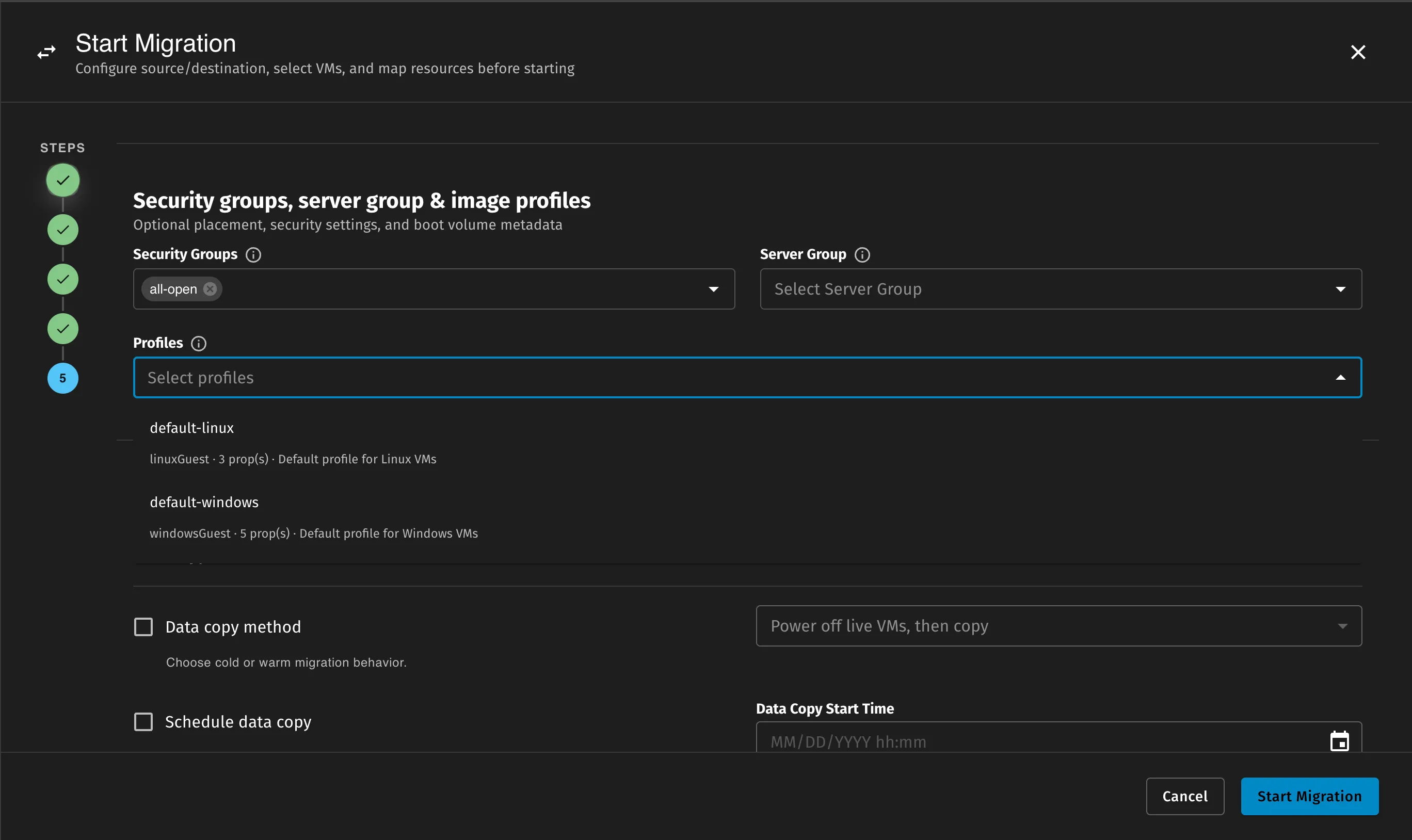
In the migration form, Step 4 (Security Groups, Server Group & Profiles) includes a Profiles dropdown. We can select one or more profiles to apply during the migration.
The dropdown shows only profiles that match the OS family of the VMs we have selected:
- If our migration includes Windows VMs, profiles with OS family
WindowsorAnyare shown. - If our migration includes Linux VMs, profiles with OS family
LinuxorAnyare shown.
Step 4 is optional. If we do not select any profiles, no additional image metadata is applied to the boot volumes.
How Multiple Profiles Are Merged
When we select more than one profile, their properties are combined into a single set before being applied. The merge follows these rules:
- All unique keys from all selected profiles are included.
- If two profiles set the same key to the same value, there is no conflict and the value is applied once.
- If two profiles set the same key to different values, the UI will show a conflict error and prevent adding the second profile until the conflict is resolved.
This ensures that the final set of properties applied to the boot volume is predictable and unambiguous.
Using Profiles via CLI
A VolumeImageProfile is a standard Kubernetes custom resource in the migration-system namespace. We can create and manage profiles using kubectl.
View all profiles:
kubectl get volumeimageprofiles -n migration-systemView a profile’s details:
kubectl get volumeimageprofile default-windows -n migration-system -o yamlCreate a custom profile:
apiVersion: vjailbreak.k8s.pf9.io/v1alpha1kind: VolumeImageProfilemetadata: name: windows-uefi-q35 namespace: migration-systemspec: osFamily: windowsGuest description: Windows VMs with UEFI firmware and Q35 machine type properties: hw_firmware_type: uefi hw_machine_type: q35 os_secure_boot: disabledkubectl apply -f windows-uefi-q35.yamlTo reference a profile in a MigrationPlan, add its name to spec.advancedOptions.imageProfiles:
spec: advancedOptions: imageProfiles: - default-windows - windows-uefi-q35