Upgrade vJailbreak
vJailbreak supports an in-place upgrade feature to go from one version to other higher version. This feature is supported starting from v0.4.0 as the base to subsequent versions.
During the upgrade, only container images, ConfigMaps, and Custom Resource Definitions (CRDs) are modified. We currently do not support the upgrade of the base vJailbreak image or existing Custom Resources (CRs). Therefore, a pre-upgrade cleanup of these resources is required.
Upgrade Process
1. Check for Updates
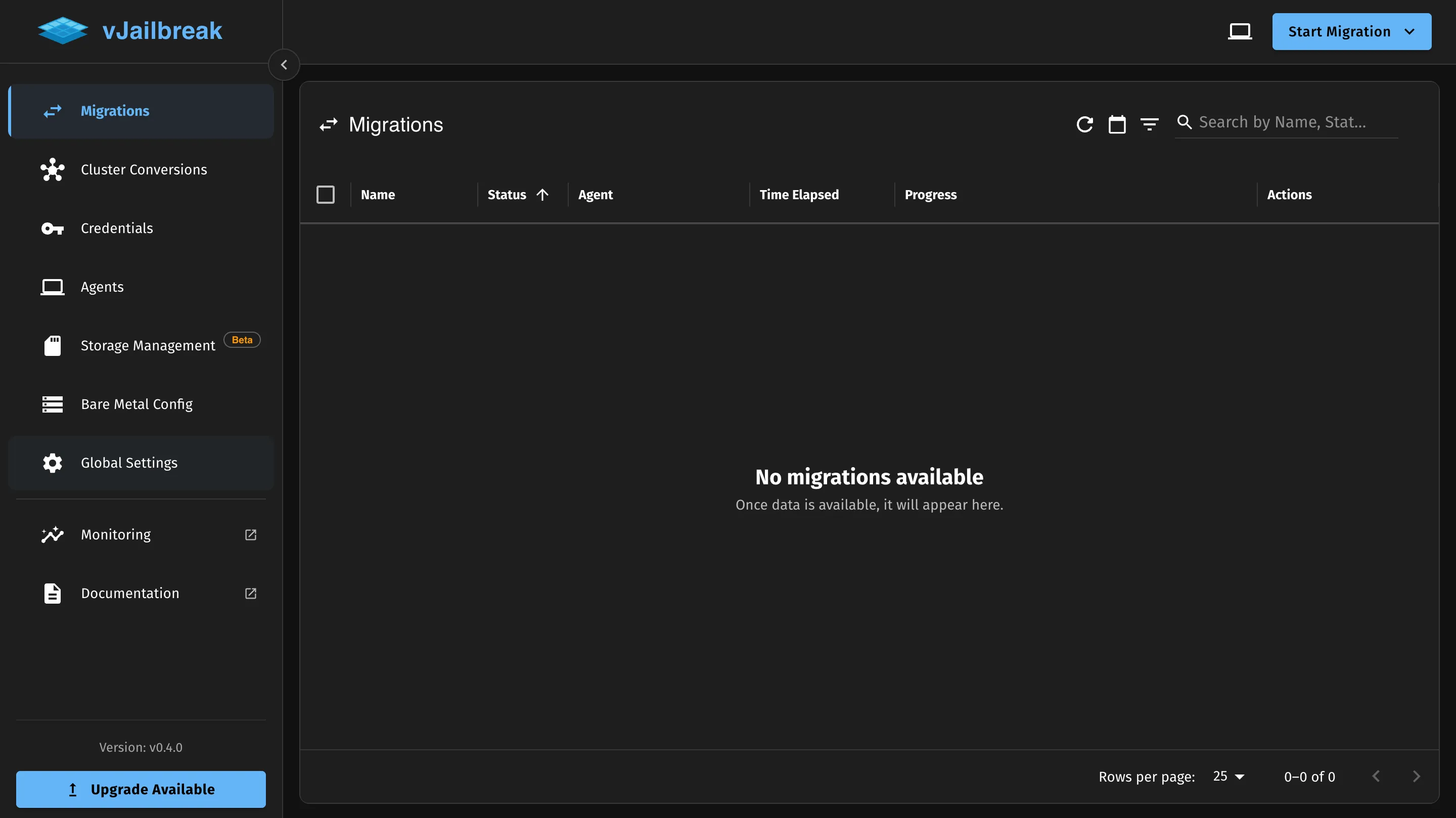
Look for the Upgrade Available button at the bottom left of the vJailbreak navigation sidebar. Clicking this button will open the Upgrade vJailbreak modal.
2. Pre-Upgrade Cleanup
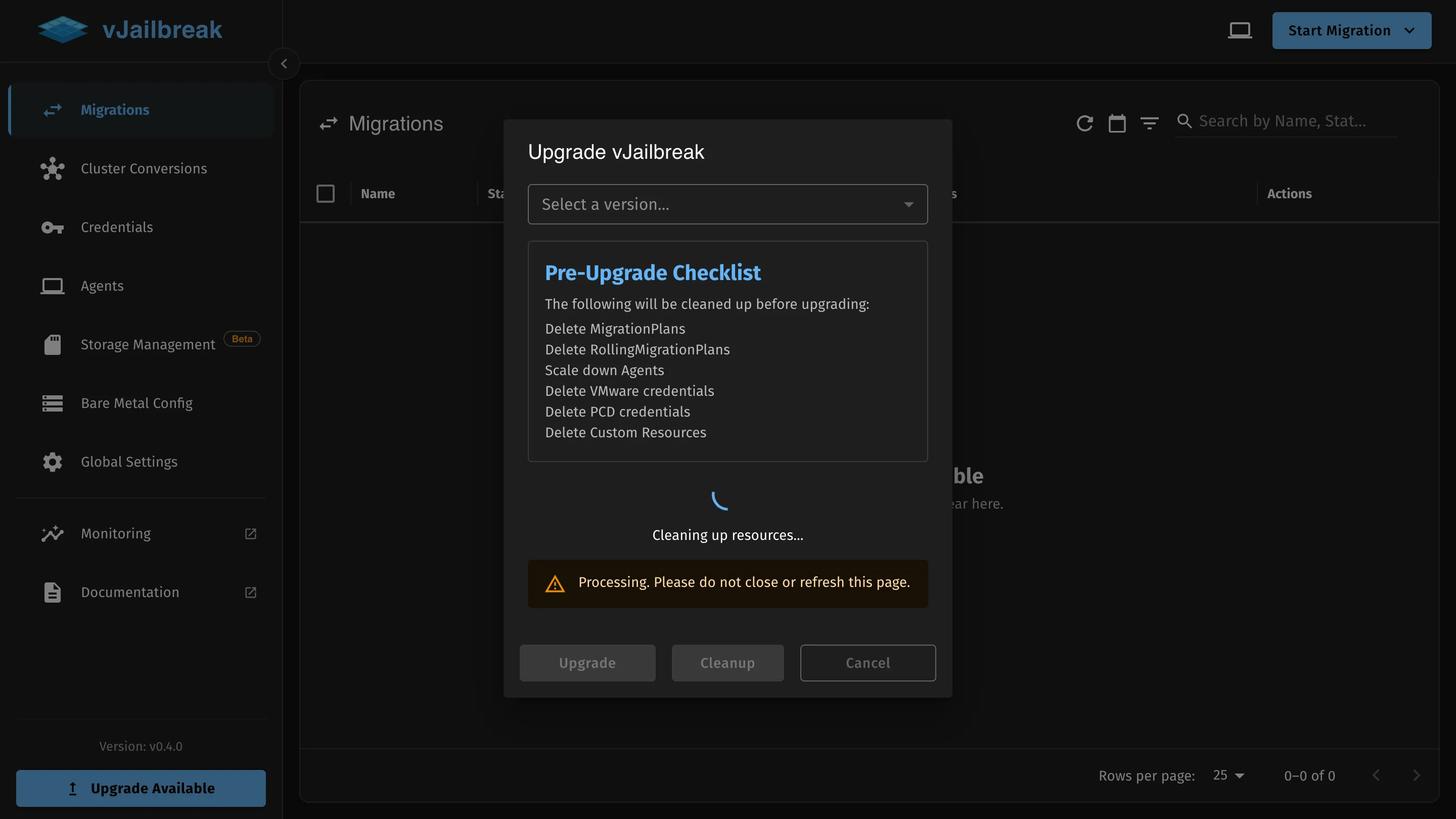
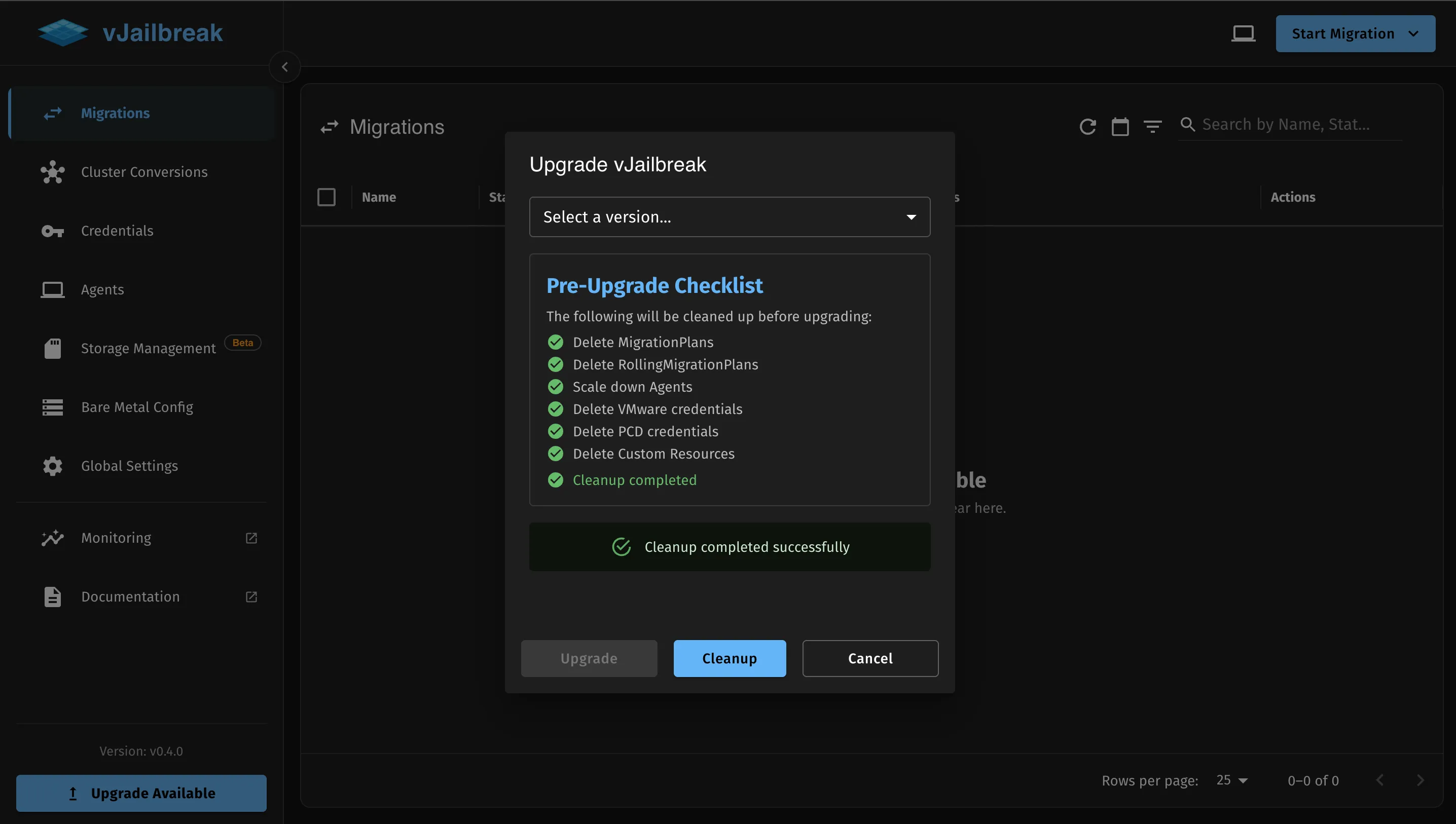
Before upgrading, vJailbreak requires a cleanup of existing resources to ensure a smooth transition. The pre-upgrade checklist includes:
- Delete MigrationPlans
- Delete RollingMigrationPlans
- Scale down Agents
- Delete VMware credentials
- Delete PCD credentials
- Delete Custom Resources
Click the Cleanup button to initiate this process. Wait for all items to show a green checkmark and the “Cleanup completed successfully” message to appear.
3. Select Version
Once the cleanup is successful, click the Select a version… dropdown and choose the target version you wish to upgrade to (e.g., v0.4.1).
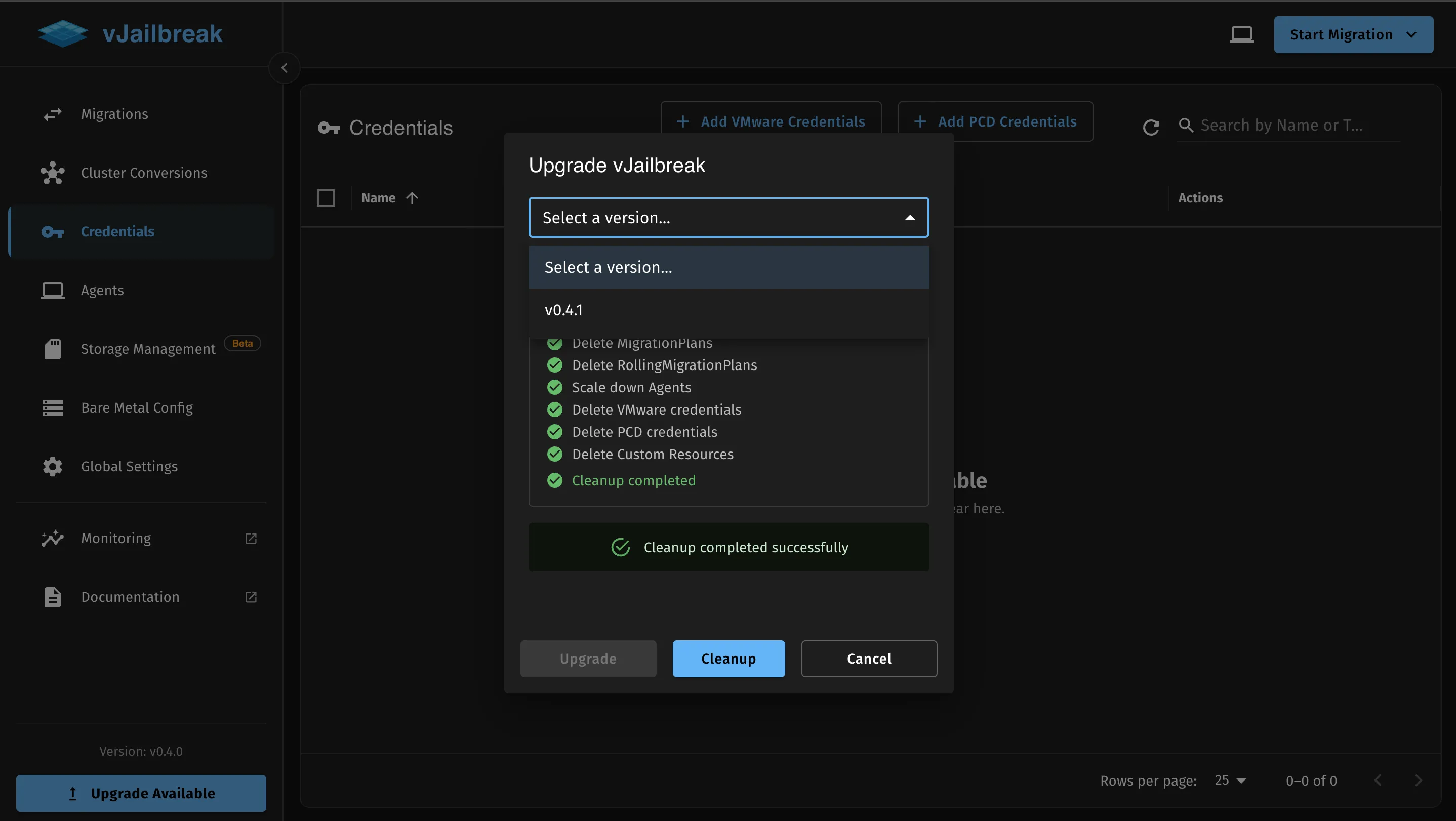
4. Initiate Upgrade
With the version selected, the Upgrade button will become enabled. Click it to start the upgrade process.
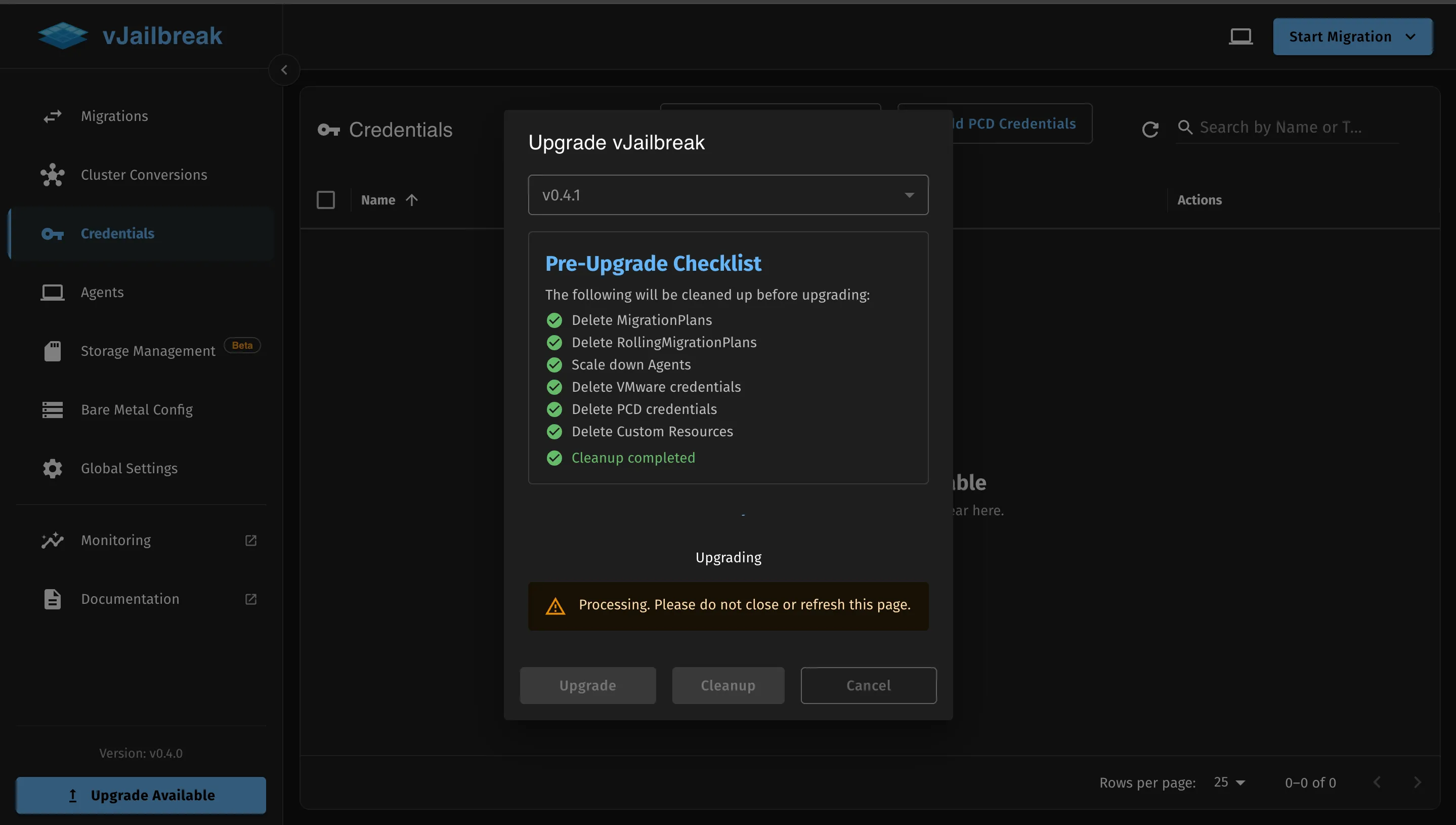
5. Wait for Completion
You will see an “Upgrading” spinner and a warning: Processing. Please do not close or refresh this page. Wait for the process to complete.
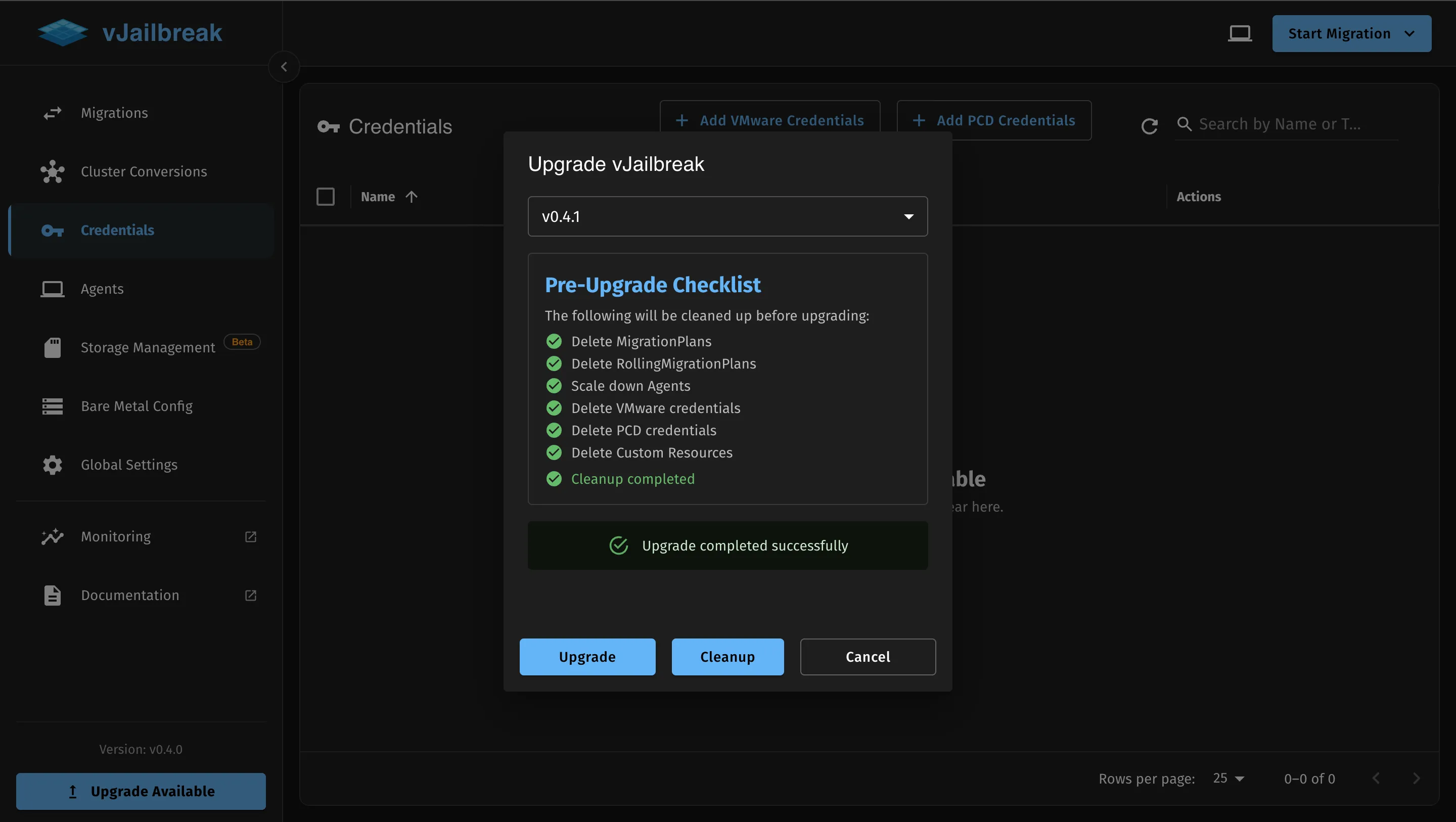
Once the upgrade is marked as successfully completed, the UI will hold on the screen for 3 seconds before automatically refreshing.
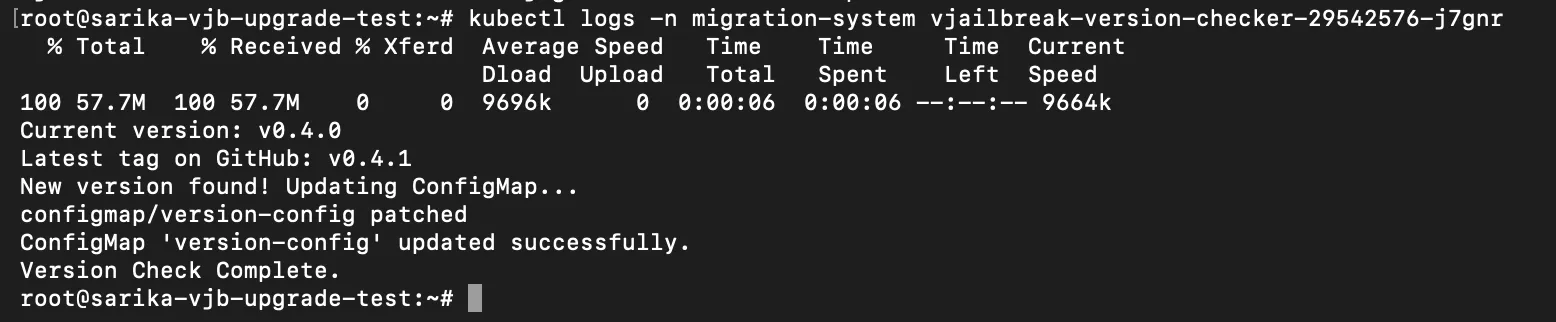
Check for update before scheduled interval
If you do not want to wait for the next scheduled check, you can manually trigger the vjailbreak-version-checker CronJob to detect if a newer version (e.g., v0.4.1) is available.
Temporarily modify the schedule to trigger it. Example (run after 5 minutes):
# Change the schedule line in the cronjob to:schedule: "*/5 * * * *"After the CronJob runs, a new pod will be created. Check the pod logs to verify whether an upgrade is available:
kubectl get pods -n migration-systemkubectl logs <cronjob-pod-name> -n migration-systemIf v0.4.1 is available, the logs will indicate the upgrade availability.